

Help · AI assistants
Use Foundry in Claude or ChatGPT.
Last updated November 16, 2026
What Foundry does in your AI assistant
Say a client’s name. The assistant reads what the plan still needs, asks for one thing at a time, and files every answer on the household. It can also read a plan, run what-ifs, log a meeting with its follow-up tasks, and build a review deck. It sees only what you could see in Foundry: the households in your own firm that your access already lets you open. Claude and ChatGPT use the same connector, the same Foundry login and the same firm switches.
The connector address
Claude and ChatGPT ask for this address when you add Foundry:
https://app.foundryplanning.com/api/mcp
Foundry’s Settings → AI assistants page shows the same steps, with the address ready to copy:
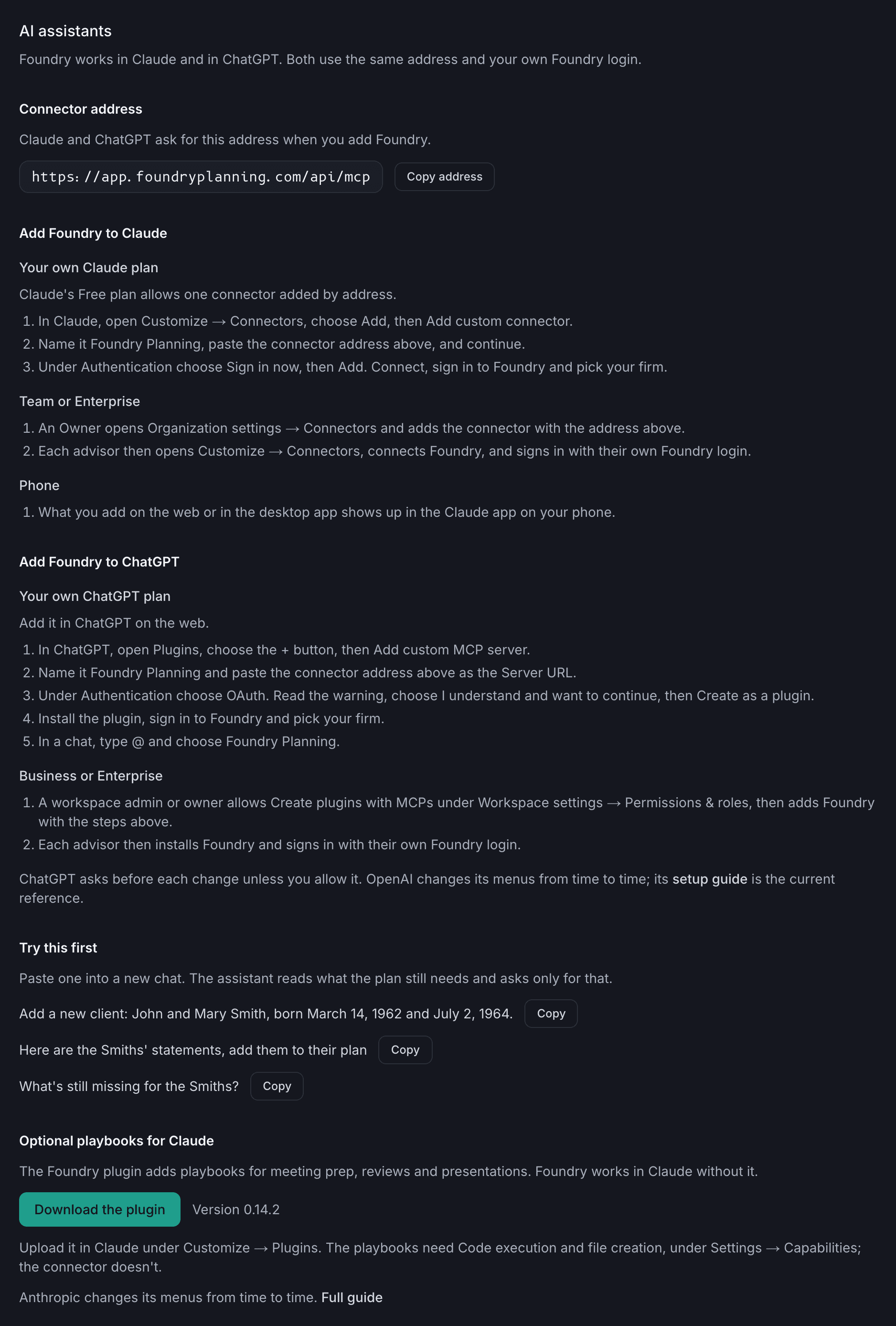
Add Foundry to Claude
Your own Claude plan
Claude's Free plan allows one connector added by address.
- In Claude, open Customize → Connectors, choose Add, then Add custom connector.
- Name it Foundry Planning and paste this address, then continue:
https://app.foundryplanning.com/api/mcp - Under Authentication choose Sign in now, then Add. Connect, sign in to Foundry and pick your firm.
Team or Enterprise
- An Owner opens Organization settings → Connectors and adds the connector with the address above.
- Each advisor then opens Customize → Connectors, connects Foundry, and signs in with their own Foundry login.
Phone
- What you add on the web or in the desktop app shows up in the Claude app on your phone.
Anthropic changes its menus from time to time. Its help article Get started with custom connectors using remote MCP is the current reference.
Add Foundry to ChatGPT
Your own ChatGPT plan
Add it in ChatGPT on the web.
- In ChatGPT, open Settings → Plugins, or go straight to chatgpt.com/plugins.
- Choose the + button, then Add custom MCP server.
- Name it Foundry Planning. Under Connection, paste this address as the Server URL:
https://app.foundryplanning.com/api/mcp - Under Authentication choose OAuth. Read the warning, choose I understand and want to continue, then Create as a plugin.
- Find Foundry Planning in your plugins and install it. Sign in to Foundry and pick your firm.
- In a new chat, type @ and choose Foundry Planning.
Business or Enterprise
- A workspace admin or owner allows Create plugins with MCPs under Workspace settings → Permissions & roles, then adds Foundry with the steps above.
- Each advisor then installs Foundry and signs in with their own Foundry login.
ChatGPT asks before each change unless you allow it. OpenAI changes its menus from time to time. Its guide Add custom MCP server is the current reference.
Try this first
Paste one into a new chat. The assistant reads what the plan still needs and asks only for that. The names aren’t real.
- Add a new client: John and Mary Smith, born March 14, 1962 and July 2, 1964.
- Here are the Smiths' statements, add them to their plan
- What's still missing for the Smiths?
What the assistant can change
Out of the box, Claude and ChatGPT can read plans and run what-ifs, and nothing more. Two switches in Foundry, under Settings → AI assistants, decide the rest for both. Only a firm admin (an owner or admin) can turn them on.
- Changes from AI assistants.When on, advisors using Claude or ChatGPT can log meetings and tasks, update household records and documents, build plans, and save what-ifs and decks, for households they can edit. The assistant asks before each change unless the advisor always allows Foundry’s tools. Before it turns on, the admin reads how client data is handled and confirms it.
- Sending to clients.When on, the assistant can send data-collection forms, reminders, reopened forms and portal invitations. It shows you the exact message first, and Foundry sends it only after you click Approve on that message in the chat. Where the assistant can’t show Foundry’s screens, send from Foundry instead. It needs Changes from AI assistants to be on.
The assistant never deletes a household, and it sends only the message you approved.
Settings → AI assistant activity lists every change made through the connector. Where a change can be put back, the row has an Undo button: the advisor whose assistant made it, or a firm admin, can use it. Undo is refused, with the reason, if the record was changed after the assistant saved it. Rows that can’t be undone link to the record in Foundry instead.
How client data is handled
- Client data goes to the assistant's maker. When an advisor asks an AI assistant about a household, what Foundry's tools return is sent under that advisor's own account: to Anthropic for Claude, to OpenAI for ChatGPT.
- What Foundry receives. Foundry receives only what a tool call sends. It never receives the chat itself, and the connection never asks the assistant for chat history or files.
- What Foundry holds back. Social Security numbers are blanked out of what the assistant reads. Account numbers in account records and documents are cut to the last 4 digits; a number typed into a note or a task is sent as typed. Dates of birth are cut to a birth year in household profiles, meeting briefs and a plan's family members; documents and a fact finder's change list show them as written.
- What is recorded. Every change an AI assistant makes is recorded as made through the connector and listed under AI assistant activity; CRM records also show a "via AI assistant" mark. A meeting reaches Foundry only when it is logged. Keeping chat transcripts is your firm's job, under its own books-and-records policy.
- Whether chats train AI models. Claude Team and Enterprise, and ChatGPT Business, Enterprise and Edu, don't use chats to train their maker's models by default, so Foundry recommends one of them for firms. On Claude Free, Pro and Max, each person chooses under Settings → Privacy → Help Improve our AI models. On ChatGPT Free, Plus and Pro, it's Settings → Data controls → Improve the model for everyone.
The full wording is in our Privacy Policy. Anthropic’s own settings are explained on its privacy center, and OpenAI’s on its data use page.
Optional playbooks for Claude
The Foundry plugin adds playbooks for meeting prep, reviews and presentations. It is for Claude only; Foundry works in Claude and ChatGPT without it. The plugin doesn’t add the connector, so add the connector first. Plugins need a Pro, Max, Ultra, Team or Enterprise plan.
- In Foundry, go to Settings → AI assistants and choose Download the plugin.
- In Claude, open Customize → Plugins, choose Add, then Upload plugin, and pick the file. On Team or Enterprise, an Owner uploads it under Organization settings → Plugins & skills and sets it to Installed by default.
- Turn on Code execution and file creation, under Settings → Capabilities (on Team or Enterprise, an Owner does it under Organization settings → Capabilities). The playbooks need it; the connector doesn’t.
Troubleshooting
Claude can’t see Foundry, or asks you to sign in again
In Claude, open Customize → Connectors, find Foundry Planning and choose Connect. If that doesn’t work, remove the connector and add it again with the address above, and pick the right firm. On Team or Enterprise, an Owner adds it first, then each advisor connects with their own login.
ChatGPT can’t see Foundry, or asks you to sign in again
In a chat, type @ and check that Foundry Planning is listed. If it isn’t, open Settings → Plugins, find Foundry Planning and install it again, or remove it and add it again with the address above, and pick the right firm. On Business or Enterprise, a workspace admin has to allow Create plugins with MCPs first.
“Your firm hasn’t turned on changes from AI assistants”
Ask a firm admin to turn on Changes from AI assistants under Settings → AI assistants, then ask again. Sending to clients has its own switch there.
“Your firm’s Foundry subscription can’t make changes right now”
Reading still works. Changes resume once billing is restored in Foundry under Settings → Billing.
“Foundry rate limit reached for this connector”
Each advisor can make 60 calls a minute, so wait a minute and ask again. What-if runs have their own budget, which resets over ten minutes. Deck exports share a limit across the whole firm, including exports from the web app, so a colleague’s exports can use it up.
A playbook looks out of date
Download the plugin again from Settings → AI assistants and upload it over the old one. The plugin and the connector update separately.
Still stuck
Write to support@foundryplanning.com with which assistant you used, what you asked it, what it answered, and roughly when.